
Step 1 — Log in
Open the Tracking Login page. Keep this page open in another tab so you can follow the steps below.
Step 2 — Mobile app settings
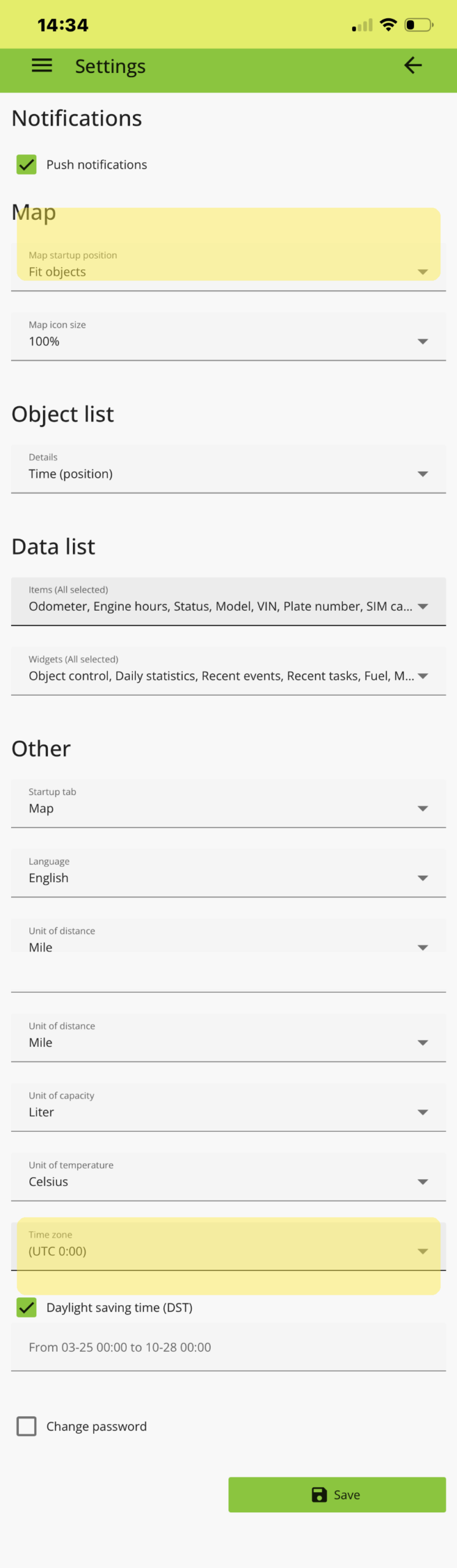
In the app, open Settings and check the highlighted rows:
- Map startup position → Fit objects
- Time zone → your local time
Step 3 — Desktop settings
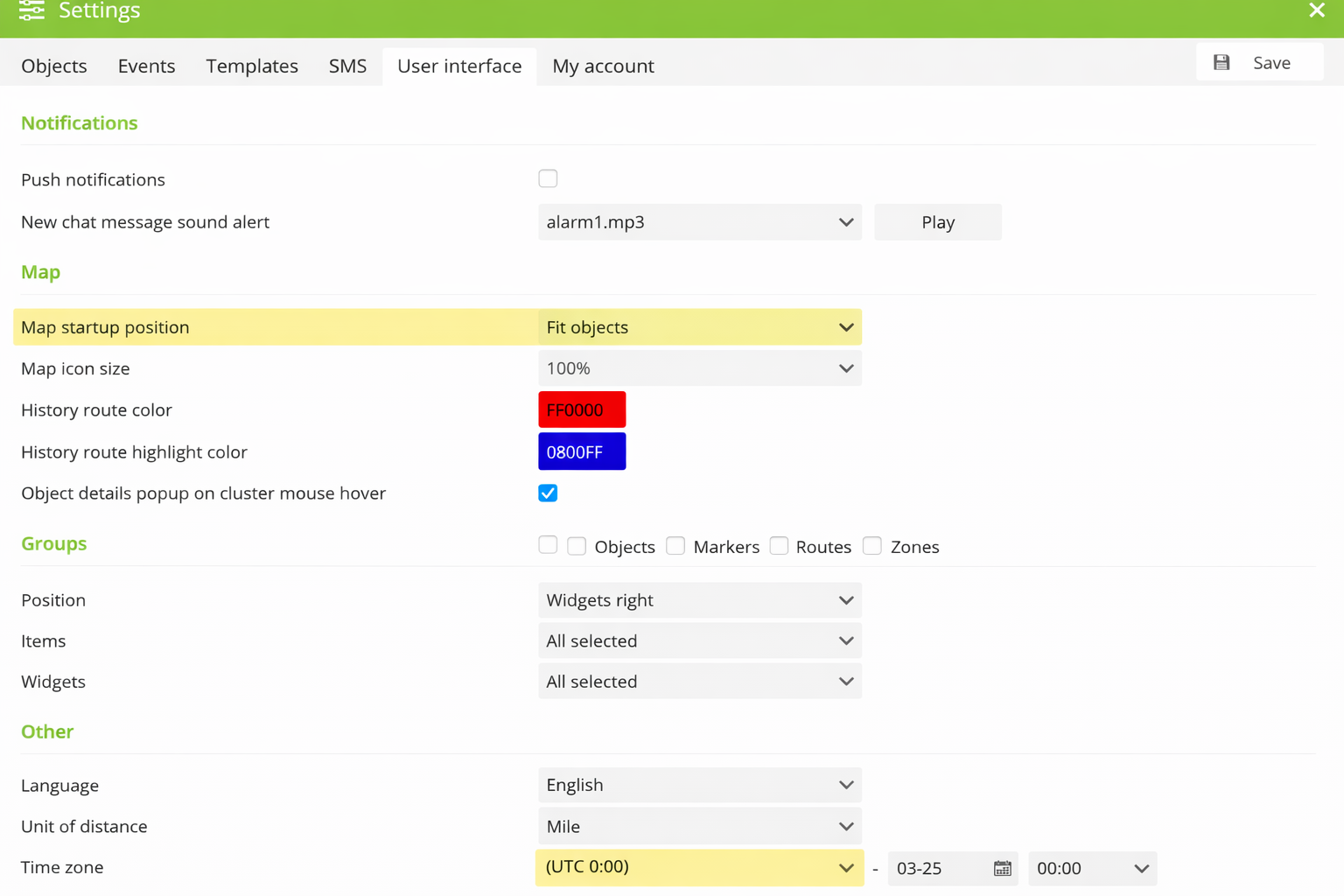
On desktop, go to Settings → User interface and check the highlighted rows:
- Map startup position → Fit objects
- Time zone → your local time
You’re ready ✅
Once those two settings are correct, your vehicles will appear properly on the map with accurate timestamps.
Already tracking with Track Wise?
Your account may already be set correctly — this is just a quick check.