
Activation complete ✅
Thank you for activating your Track Wise device.
Before you start tracking, please check the two settings below in your account (on mobile and desktop):
- Map startup position → set to Fit objects
- Time zone → set to your local time
If you already have a Track Wise account, your new device will automatically appear in your existing tracking account.
If this is your first device, the tracking platform will send you an email with your login details once setup is complete.
Step 1 — Log in
Open the Tracking Login page. Keep this page open in another tab so you can follow the steps below.
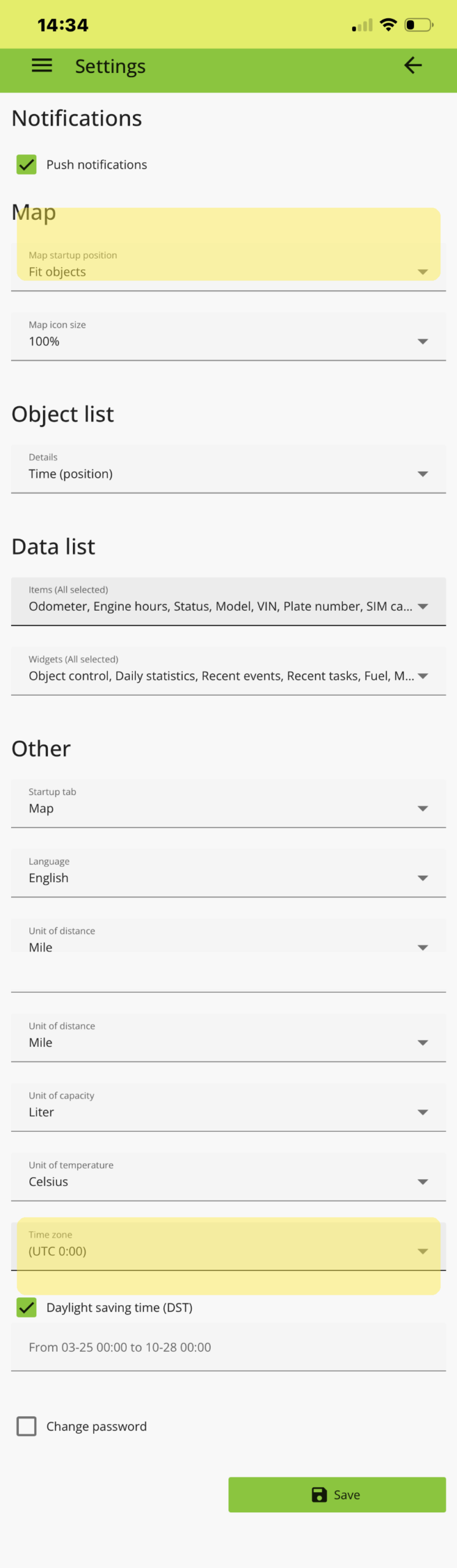
Step 2 — Mobile app settings
In the app, open Settings and check the highlighted rows:
- Map startup position → Fit objects
- Time zone → your local time
Step 3 — Desktop settings
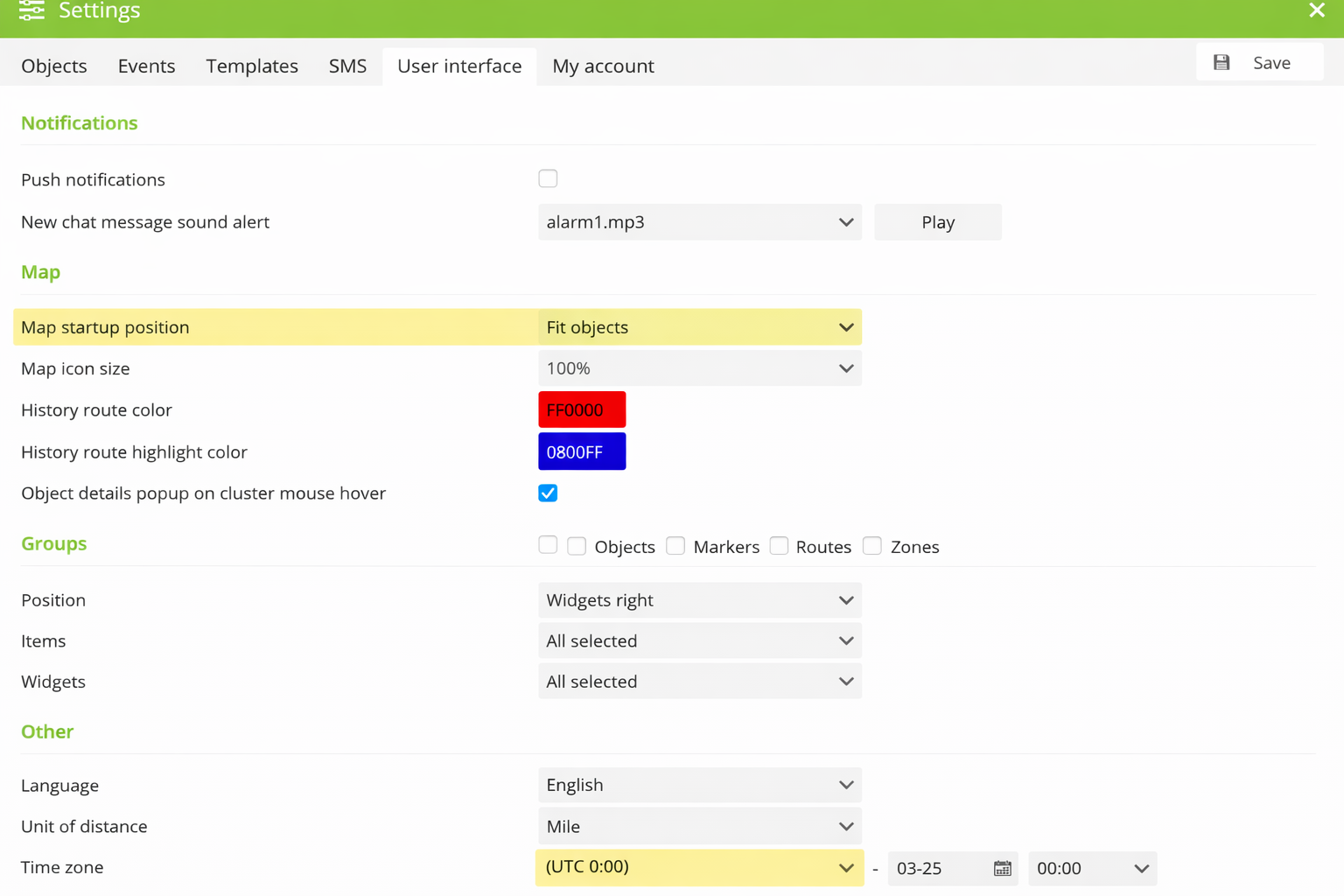
On desktop, go to Settings → User interface and check the highlighted rows:
- Map startup position → Fit objects
- Time zone → your local time
You’re ready ✅
Once those two settings are correct, your vehicles will appear properly on the map with accurate timestamps.
Already tracking with Track Wise?
Your account may already be set correctly — this is just a quick check.